

Kudos are individual posts or articles about the good things happening in schools. Any registered user can author a Kudos. This document is a complete guide for authoring. A short quick-start guide is available in our related document: Synopsis for Authors. Before you begin, please make sure that you are submitting good news. Your submission must be an eligible Kudos.
Staff or User #
The way that individual Kudos is processed depends on your role. Staff members of a particular school (or school district) create Kudos which are published immediately upon submission. Other Kudos creators such as parents, students or other members of the community create Kudos which are submitted to the school. Submitted posts are reviewed then published by the school.
Membership Required #
Anyone can submit Kudos for publication. The first step is registration. Select the Sign Up button to register.
Authoring: Complete Step-By-Step Guide #
- Login
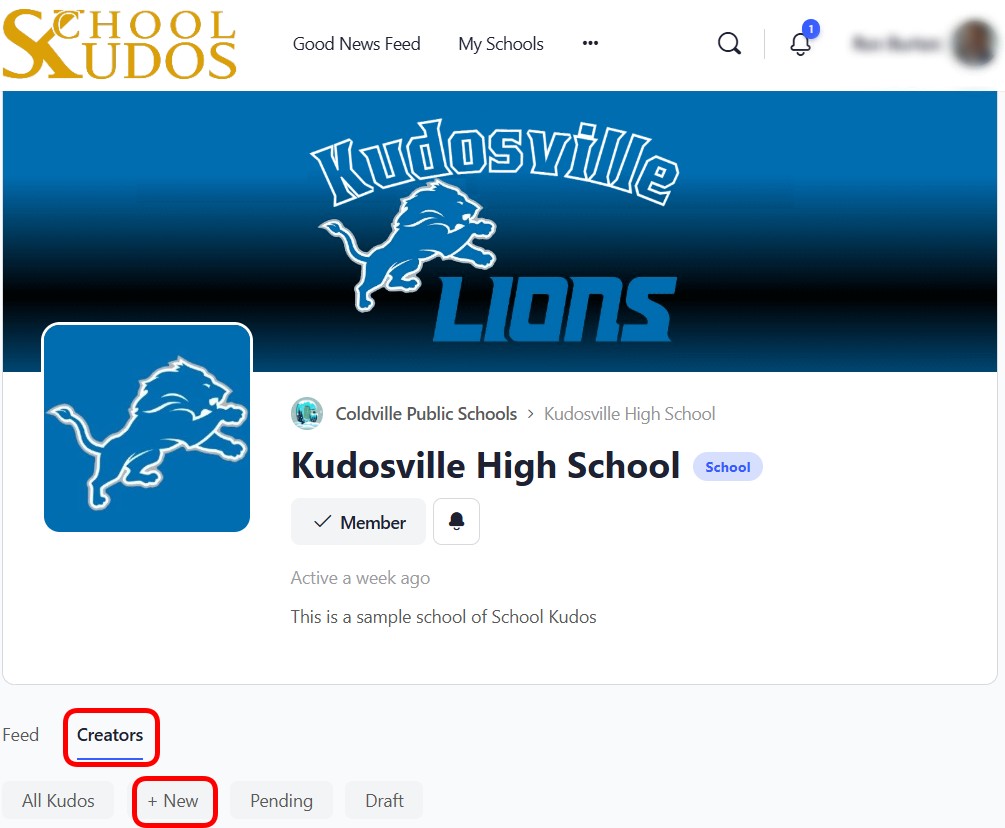
- Kudos are added from the specific school (or district) page. Go to the school page. To get there, select My Schools from the menu. If you are a member of more than one school or district, select the one associated with the Kudos you are submitting.
- In the sub menu, select Creators then select + New.
- The first required item is the Featured Image. Our system will help you crop the image for the best look. Click the Set Featured Image button. Upload a new picture or use the tab to access the Media Library to select a previously uploaded image.
- Hit the blue Set Featured Image button at the bottom right.
- If the system determines that your photo needs to be cropped, an additional step will allow you to move the corners or the frame to crop and select the portion of the image to feature. Edit your image and then click Crop & Save.
- Note about cropping: If you crop a vertically aligned image so that it looks good as your featured image but you want to also share the full vertical image, we suggest adding that full image in the content portion as well (see Add Media below).
- Enter a Title. This is the headline of your Kudos. The recommended length is 50-60 characters with a maximum of 100.
- The Content of your Kudos is next. Use the editor to become a reporter of good news.
- Write your story. Easily add text and formatting. You can add additional pictures by selecting the Add Media button and following the same steps used to add the featured image.
- You can add video to your Kudos. See the Adding Video document for complete details. Large video files must be inserted from a URL on a video hosting service such as YouTube or Vimeo. To insert a large video, copy the video URL. Click Add Media. On a computer, select Insert from URL. On mobile, click Menu then Insert from URL. Paste the video URL in the address box. Click Insert into Kudos Post.
- Content must be good news, success, achievement or recognition of students, educators, schools or school districts. Other communications or submissions that do not meet our standards and the standards of your school will not be published. See the Eligible Kudos document for more information.
- The Excerpt is an optional field. If you leave it blank, we will use the first 25 words (maximum) of the content to auto-generate your excerpt. If you prefer, you can write a custom brief summary of your Kudos here. It will be displayed in feeds and social media (when shared). The recommended size is 30 to 55 words. It encourages users to click through and read your story. It should grab the reader.
- Select the Team or Group. This is the way your Kudos will be categorized appropriately in your school. If you find that a new Team or Group is needed, select a generic category for now such as Academics, Arts or Athletics then contact your school administrator or email support@schoolkudos.com. We will add the new Team or Group and connect it to your Kudos.
- Select to display your name as the author for the post. This checkbox allows non-staff such as parents and students to determine if they would like to be listed as the author of a post. For privacy or other reasons, some authors prefer to not be credited for their Kudos. If you uncheck the display of your name, the Kudos byline will be set by the school organizer who approves your post. The author will then display as something like “Contributor.”
- Also display on your district’s feed? Your Kudos will automatically be displayed on your school’s feed. Check the box if it should also be displayed on the feed of your school district. Many districts want to include all major Kudos on the broader district feed while some of the day-to-day shout-outs display only at the building level. Think of this like the old-fashioned newsletters. Some items used to come in a principal’s email while other big stories were included in district publications. Not sure about this? Don’t worry. It can easily be changed.
- Submit for Review is the final creation step for non-staff. Staff members select Publish, and your Kudos is live right away. Once your Kudos is submitted, you will see your Kudos. You can edit the post from here if necessary. You can also return to the Creators tab of your school page to Edit or Delete any Kudos you have previously authored.
- Your school’s approver(s) will receive notification of your submission (for non-staff only). They will review your Kudos. Your school’s administration has the authority to publish, edit or reject your story.
- You will be notified by email when your Kudos is live and ready for reactions and sharing by other users and comments by school staff.
Save Draft #
While authoring Kudos, you can save a draft at any time by selecting the Save Draft button at the bottom left of your form. To return to your saved item, follow these steps:
- Select the school associated with the Kudos you have saved.
- Click the Creators tab the select Draft.
- Any Kudos you have saved as Drafts will be present.
- Resume by selecting Edit. You can also delete the draft here.
The required items of a post must be selected before a Draft can be saved. Some schools add placeholder material to prepare for upcoming known Kudos. For example, the debate team is competing in the state tournament tomorrow. A member of the team prepares the Kudos that will be published following the conclusion of the tournament (when the final results are known). Her draft includes a placeholder picture and she adds content that recaps the season and the regional tournament from last weekend. It is saved as a draft. During the state tournament, she adds additional content including a picture of the team on stage. As soon as it ends, she updates the score and Title then submits the Kudos.